
Google Mapping - Example and Instructions for Small Organizations/Nonprofits
An alternative to GIS

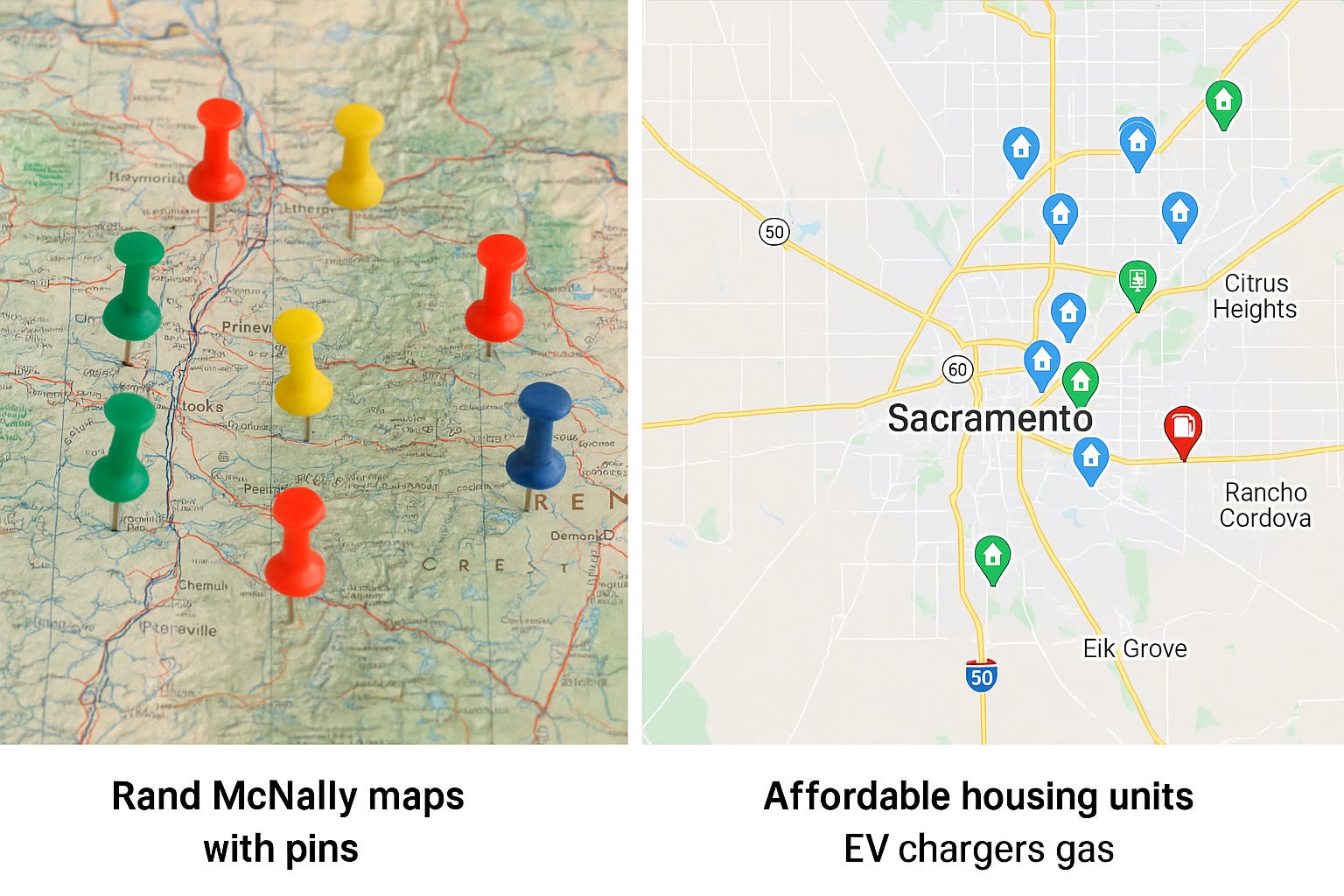
Back in 2011–2012, when I was working as a grants technician in Oregon on HUD’s Neighborhood Stabilization Program (NSP 1 and 3), my mapping tool wasn’t digital at all—it was a Rand McNally road atlas with push pins. I literally had maps spread across my desk, color-coded pins marking foreclosures, acquisitions, and rehab properties. That was my “data visualization.”
A few years later, when we didn’t have GIS tools in place, I shifted to Google Maps as a workaround. It wasn’t fancy, but it worked—especially for organizing properties and sharing them with teams who didn’t need to learn a specialized system.
Today, I still think about that contrast:
· Google Maps: quick, intuitive, free; great for smaller projects, team communication, and visualizing a handful (or a few hundred) addresses.
· GIS: powerful, expensive, and worth it when analyzing large swaths of land, layered data (like zoning, demographics, floodplains), or running complex queries at scale.
For many housing and community development teams, the return on investment isn’t always there for full-blown GIS—sometimes the simplest tool gets the job done faster.
It’s a reminder: whether you’re dropping pins in a Rand McNally, building layers in Google Maps, or running ArcGIS—what matters most is that the map helps people see the story behind the data.
Example
Below are the steps taken to create a map of affordable housing, EV chargers and gas stations in Sacramento for SHRA.
DATA:
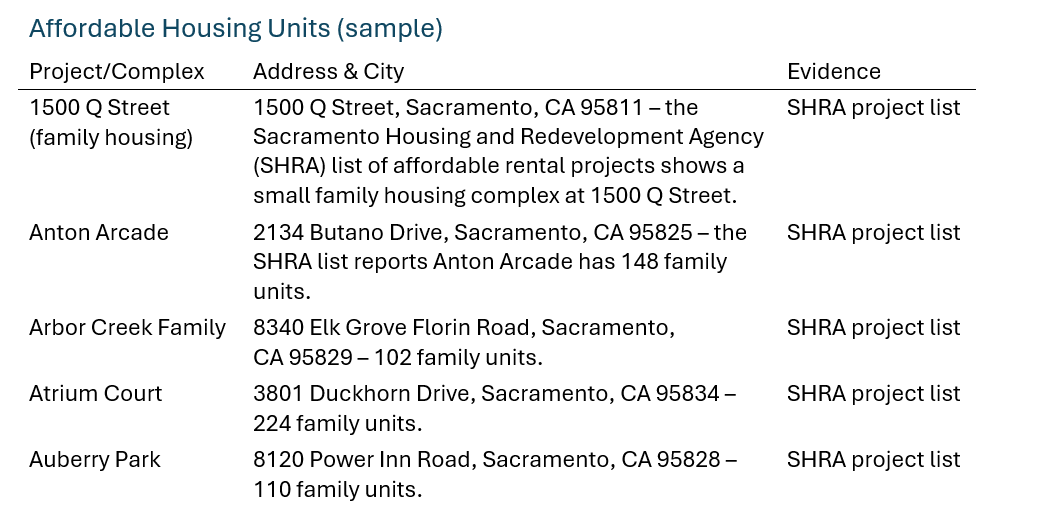
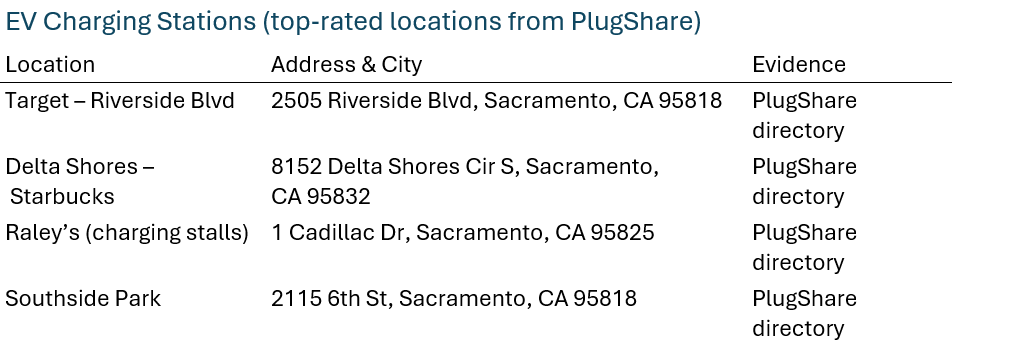
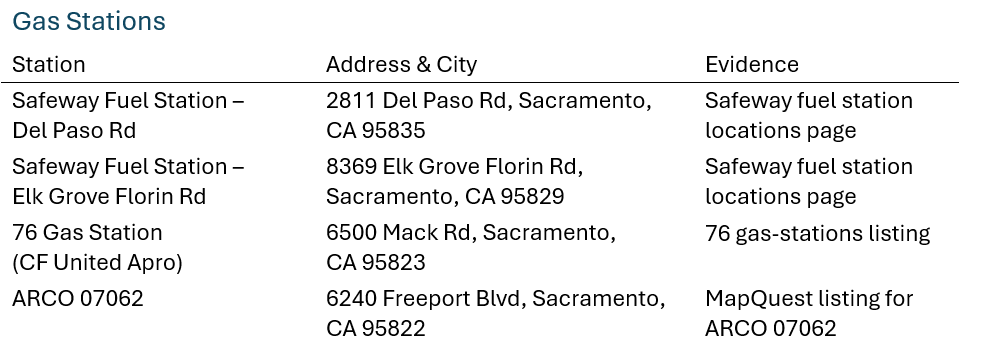
Note: These lists contain just a sample of affordable housing complexes, EV chargers and gas stations to demonstrate how to build a custom map. You can add more locations following the same process.
Step‑by‑Step Instructions to Create the Custom Google Map
Sign into Google and open My Maps
Open a web browser and go to Google My Maps. You must be signed into a Google account to create or edit custom maps. If prompted, log in with your Google credentials.
Create a new map
In My Maps, click “Create a new map”. A blank map appears. You may see “Untitled map” at the top; click the title to rename it (e.g., Sacramento Affordable Housing, EV Chargers & Gas Stations).
Add layers for each category
-In the left panel, click “Add layer” three times so you have separate layers for Affordable Housing, EV Chargers and Gas Stations.
-Rename each layer by clicking the three‑dot menu next to the layer name, choosing “Rename this layer”, and entering the category name.
Add markers for affordable housing
-Make sure the Affordable Housing layer is highlighted (active).
-Use the search box above the map to search for the first address (e.g., “1500 Q Street Sacramento CA 95811”). Google will drop a pin on that address.
-In the pop‑up box, click “Add to map”. The marker will appear in the Affordable Housing layer.
*Optionally click the paint‑bucket icon to change the marker color (e.g., blue) and choose an icon (e.g., a house) for clarity.
-Repeat steps 4.2‑4.4 for each of the affordable housing addresses listed above.
Add markers for EV charging stations
-Select the EV Chargers layer to make it active.
-For each EV charger location (e.g., 2505 Riverside Blvd), search the address in the search bar, click the pin, then click “Add to map”.
-After adding a charger, customize the marker color (e.g., green) and icon (e.g., a plug) to differentiate them from other layers.
Add markers for gas stations
-Activate the Gas Stations layer.
-Search each gas station address (e.g., 2811 Del Paso Rd). When Google drops a pin, click “Add to map”.
-Use the paint bucket to assign a unique color (e.g., red) and icon (e.g., a fuel pump) for gas stations.
Style and organize the map
-You can drag markers within the layer list to change their order.
-Click the layer’s three‑dot menu to edit layer style (e.g., uniform icons) or delete a layer.
-Use the base‑map selector (below the title bar) to choose a different background (e.g., “Light political” or “Satellite”).
Save and share your map
-My Maps saves changes automatically. To share the map, click “Share” in the left panel. Adjust privacy settings (Public, Anyone with link, etc.) and copy the shareable link.
28. Share the link with others so they can view your map. They won’t be able to edit it unless you grant edit permissions.
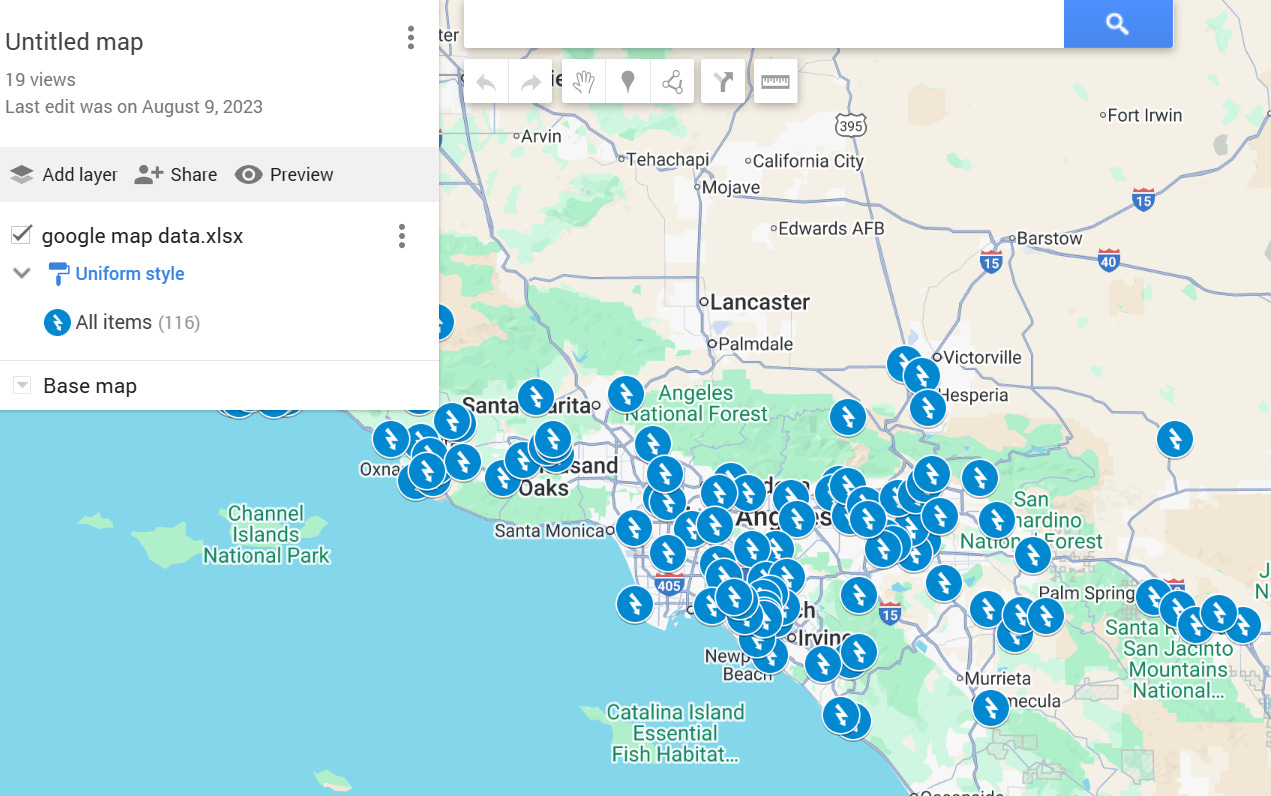
Tips
To add additional affordable housing units, EV chargers or gas stations, simply keep the appropriate layer active and search for the desired address. Google My Maps will automatically propose matching locations. Use official addresses (like those above) for the most accurate placement.
For large datasets, you can import a CSV or spreadsheet of addresses into a layer using the “Import” option (found in the layer’s header). Each row should include at least an address column.
With these steps, you can create a multi‑layered Google Map that clearly shows affordable housing projects, EV chargers and gas stations in Sacramento County.
Once complete, your map provides an at‑a‑glance view of these amenities to help residents and visitors plan housing searches or vehicle charging and refueling options.
Useful Maps
As a small organization, I appreciate the flexibility of Google maps. Any dataset can be used. Below are some different databases that you may want to experiment with and learn from.
I have used this tool for planning, demonstrating and tracking program deliverables. My favorite map is one for housing. The individual houses are not identified, and it will only show in the zip code or region identity and as placements are made, the map gives a quick visual of their community that they work and live in.
Additional Resources
How to Create a Map
Let me know if this was helpful or if you have questions and/or suggestions of other tools/topics to address.